 / Office of Background Investigations / Resources / OBI Provider Portal / DOE User Registration Guide
You're viewing the test version of the VDSS Public Website. For the most accurate and latest information please visit our live site.
/ Office of Background Investigations / Resources / OBI Provider Portal / DOE User Registration Guide
All DOE child care facilities, providers and programs must complete both a Central Registry Search (CRS) and a Criminal Background Information Search (BIS) for employees, applicant agents, household members (when required) and volunteers.
To submit and manage these requests, providers must register for access to the OBI Provider Portal. Registration must be approved by the Office of Background Investigations (OBI).
Once approved, the portal allows you to:
Before registering, review the questions below and decide what works best for your facility or program.
If yes, you must choose one primary user.
To avoid duplicate accounts, add users to one account instead of having multiple people register separately.
All DOE child care providers must complete both CRS and BIS.
You may still download, complete, and mail the CRS form to OBI. However, if you choose this option:
For these reasons, OBI strongly recommends using the OBI Provider Portal.
Providers have two online options:
Option A:
The provider enters all required applicant information.
A handwritten (“wet”) signature from the applicant is required.
Option B (Recommended):
The provider sends a secure link from the portal to the applicant.
The applicant completes the form, signs electronically, and submits it online.
The electronic option is the fastest and most efficient method. Providers can still download a copy for their records if needed.
Each registered facility or provider must use a unique email address.
If you oversee multiple facilities, you cannot use the same email address for more than one account or as a secondary user.
Before registering, gather the following:
Effective January 1, 2022, background check portability may be requested for individuals hired or volunteering at a Child Day Program or Family Day System if:
Portability allows previous No Match (CRS) and Eligible (BIS) results to transfer to a new provider when an applicant changes employers.
Portability is not a new CRS or BIS request.
If the applicant has never completed a Virginia CRS or BIS, portability does not apply.
A Portability Determination Flow Chart is available here to help you decide if portability applies.
Go to the OBI Provider Portal website.
This link opens the portal home page.
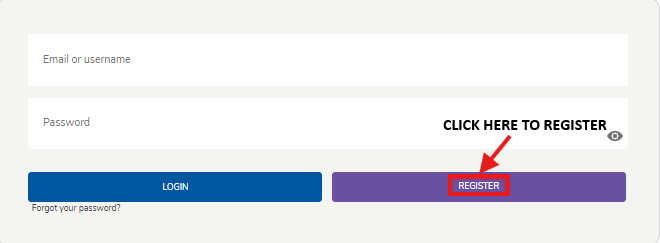
At the bottom of the Email/Username and Password fields, select Register.
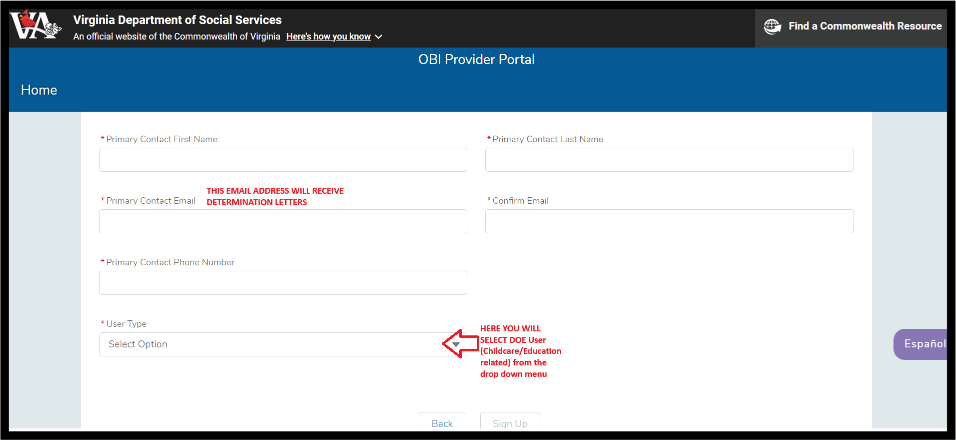
Enter the required information for your child care facility, provider, or program.
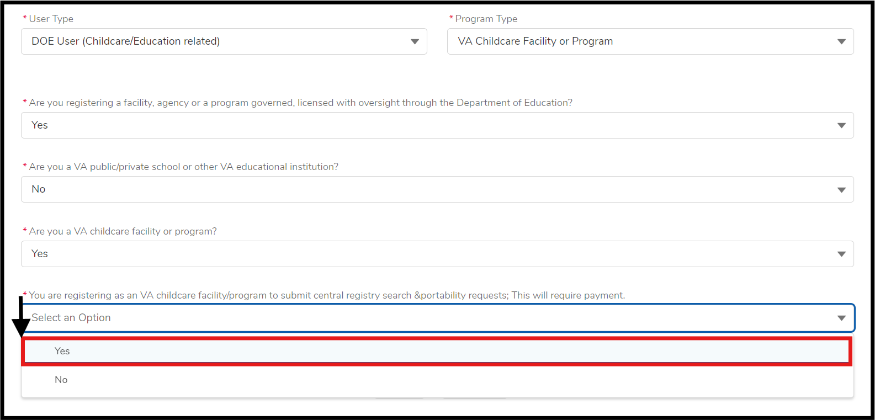
When prompted, select DOE User.
You will be asked a series of questions to confirm your user type. Your answers determine your access to OBI services, such as Central Registry Search (CRS), Criminal Background Information Search (BIS), and Portability.
Program Type
Select VA Childcare Facility or Program

DOE Licensing
Select Yes to confirm you are governed or licensed by the Department of Education.
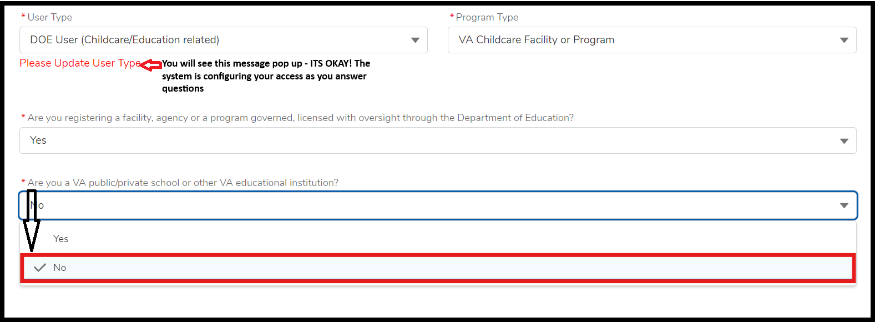
School User Type
When asked if your facility or program is a public or private school, select No.
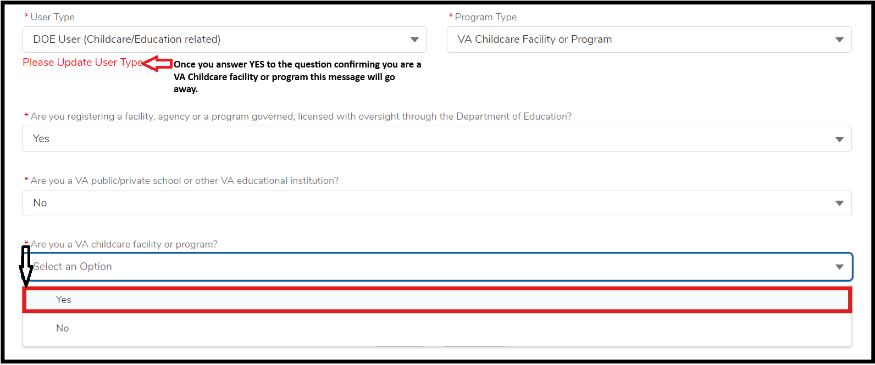
VA Childcare Confirmation
Select Yes to confirm you are a Virginia child care facility or program and are registering to submit Central Registry Search requests that require payment.
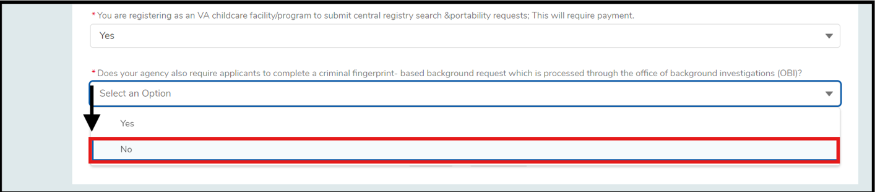
You will be asked:
Does your agency require applicants to complete a criminal fingerprint-based background check processed by OBI?
Answer carefully. Your response determines the next steps.
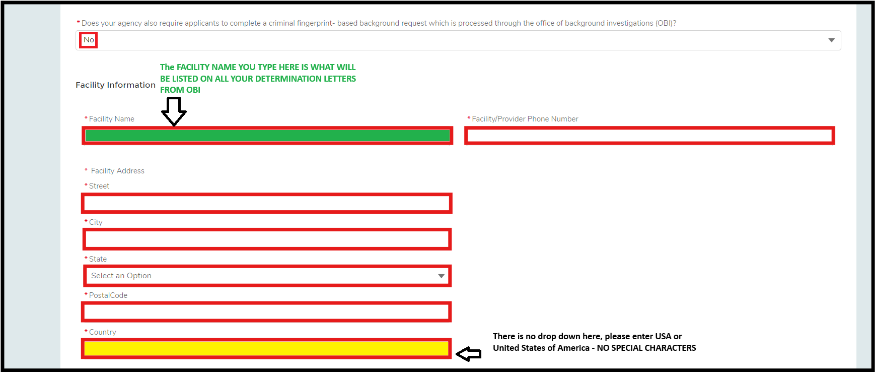
Choose No if you will only submit Central Registry Search requests and receive CRS determination letters.
1. Enter your facility or program name and address.
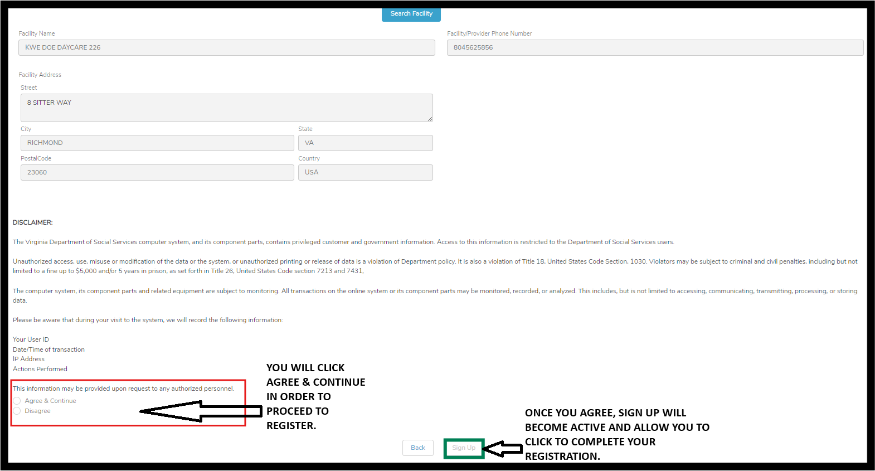
2. Read the disclaimer.
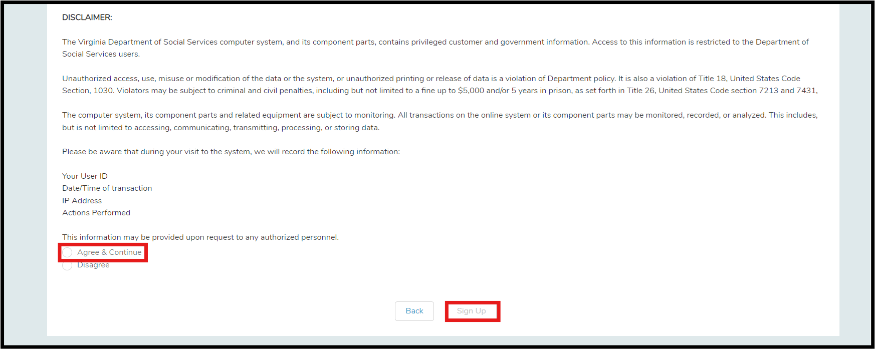
3. Select Sign Up.
Your registration is complete.
You will see a confirmation message and receive an email to set your account password.
Choose Yes if you will receive Criminal Background determination letters.

1. Enter your facility or program name and address.
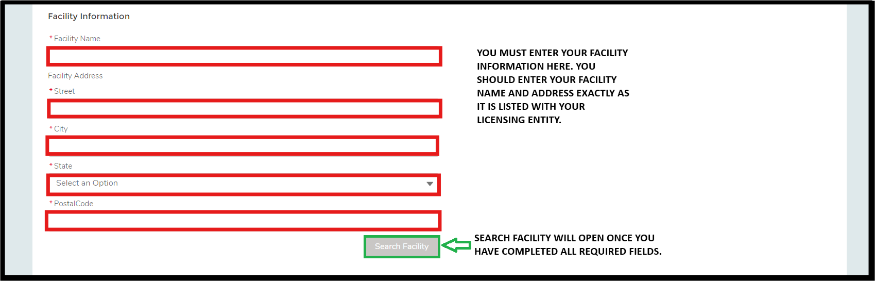
2. Select Search.
Important:
If incorrect information is entered three times, you will be returned to the home screen and asked to contact OBI to verify your facility information.
3. Review the facility information carefully.
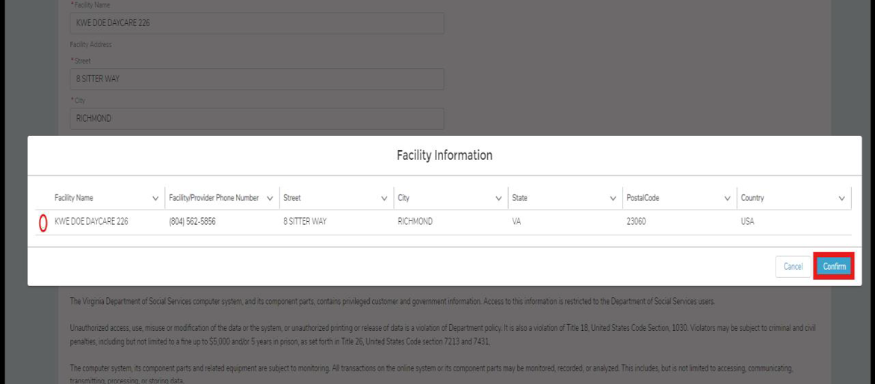
4. Read the disclaimer.
5. Select Sign Up.
You will receive a completion message.
After OBI approves your request, you will receive an email to set your password.
Note:
Because criminal background checks are confidential, all accounts that include BIS access must be approved by OBI. Approval may take up to 24 hours, especially on weekends or holidays.
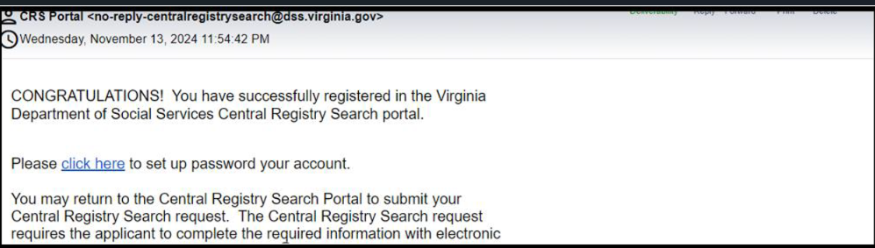
Each additional user will receive their own email and will log in using their email address.
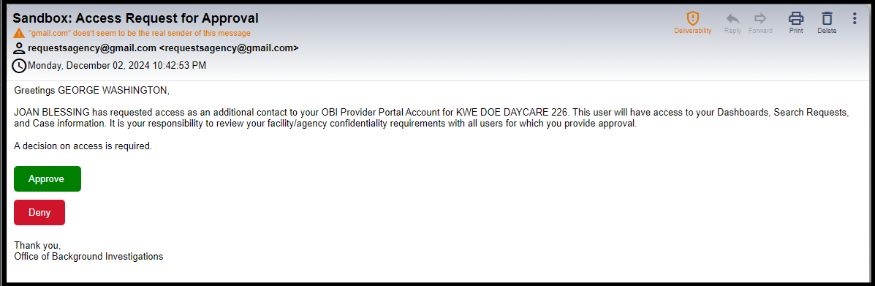
If an account already exists and a new user registers, the primary account holder will receive an email to approve or deny access.
After your password is set, you will be logged in to the OBI Provider Portal.
Your dashboard will allow you to:
The Office of Background Investigations welcomes your questions.
Central Registry Unit: crs_operations@dss.virginia.gov
Criminal Background Unit: backgrounds@dss.virginia.gov





 Find my local department