 / Virginia Learning Center / Tips on using the VLC / Reporting Role / How to Populate an Enrollment Report
You're viewing the test version of the VDSS Public Website. For the most accurate and latest information please visit our live site.
/ Virginia Learning Center / Tips on using the VLC / Reporting Role / How to Populate an Enrollment Report
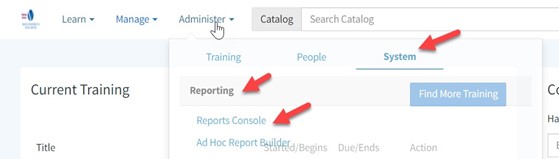
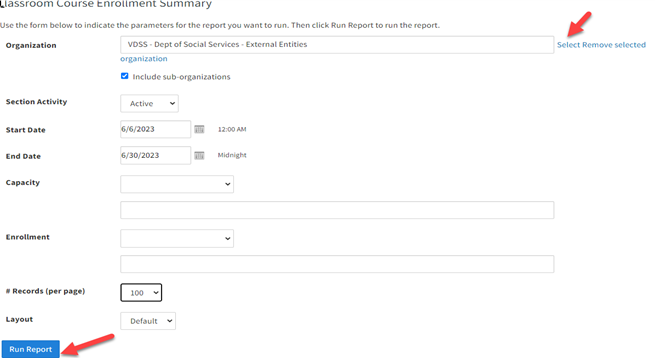
Follow these steps to get the Classroom Course Enrollment Summary from the VDSS External Domain.





 Find my local department